What is a route?

This is where you will need to choose between the 3 types of routes (Map and QR Codes, QR Codes only, or automatic triggering).
A route is a series of questions/puzzles that must be answered within a set time. Each correct answer earns points, with the goal of achieving the highest score possible.
You can create three types of routes:
- A route with zones and QR codes, taking place within a large defined space.
- A QR code-only route, which can occur anywhere you place the QR codes.
- A route with automatic triggering, which starts automatically in the designated area at the beginning of the game (e.g., a route in a building’s lobby without needing to install QR codes or define zones).
How to Create a Route with Zones and QR Codes?
To create a route with zones and QR codes, you will need to define several key points:
- The starting point of your route.
- The duration of your route.
- The area on the map where your route will take place.
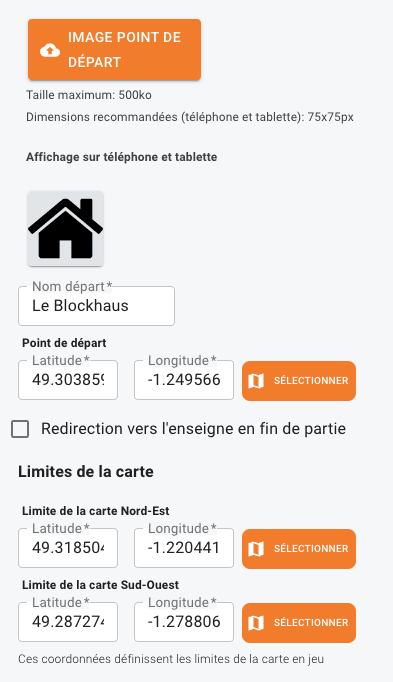
To define your starting point, assign it a name and an icon that will be displayed on the map, and specify its longitude and latitude (follow our tutorial to find accurate GPS coordinates).
For the duration of your routes, they can range from 30 to 120 minutes in 5-minute increments.
Finally, to define your map, you will need to provide 2 GPS coordinates (once, tutorial available here): the North-East corner and the South-West corner.
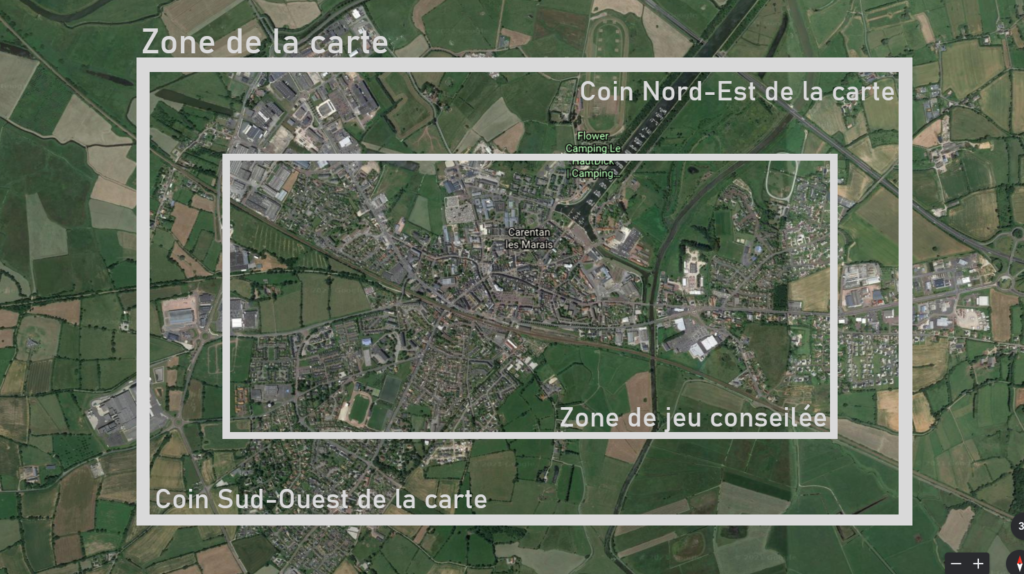
Tip: Define a zone slightly larger than what you actually need. This ensures players can navigate the map in the app without difficulty. If a question is placed too close to the edge of the game area, players might struggle to access it on their tablet/smartphone.
Once these details are defined, you can start adding Game Zones and QR Codes.
What Is a Game Zone and How Do You Create One?
A game zone is an area within the perimeter you have defined on your map, where players will answer one or more puzzles. It is determined by several parameters.
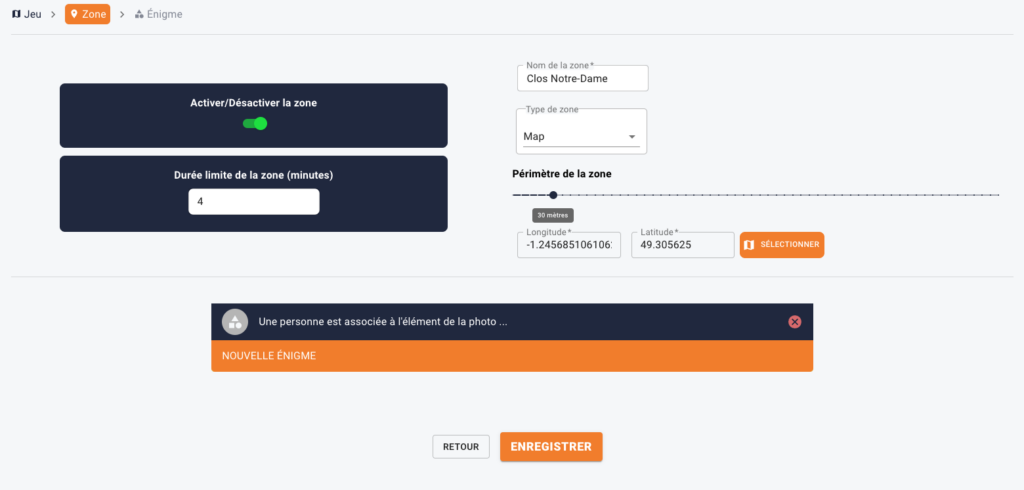
How to Create a Game Zone:
- You need to provide the name of your zone. It could be a street name, a reference to the puzzles it contains, etc.
- You then need to specify the type of puzzles you will create (in this case, a game zone, so Map).
- Next, indicate the characteristics of your zone. This will be a circle centered on the point specified by its GPS coordinates and its perimeter.
- Finally, set the total time limit to complete your zone. The time is not divided between the puzzles.
Make sure to save your zone once it is defined.
You can also choose to activate or deactivate a zone. This allows you to hide it from the tablet/smartphone during the game. For example, you can work on certain zones, design seasonal zones, etc.
Once a zone is saved, the defined puzzles and the game launched, players entering the zone will be able to answer the puzzles you have prepared.
What Is a QR Code in Landing Zone?
A QR Code is an image that provides access to a link (for example, a webpage).
In this case, a QR Code will allow access to one or more puzzles within our app once it is scanned.
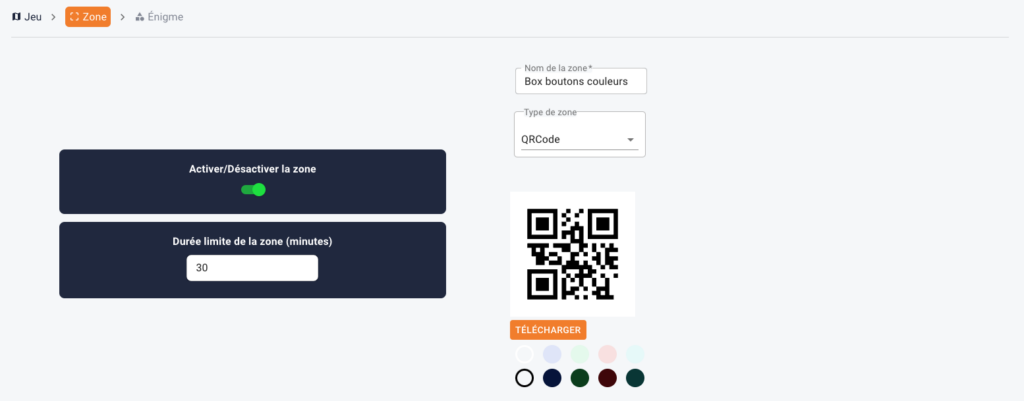
How to Create a QR Code:
- You need to provide a name.
- Then, select the type of QR Code.
- From there, a QR Code is automatically generated. You can then define a background color and an outline color (be careful not to use colors that are too similar to ensure the QR Code is easily detectable).
- Now specify the total number of points the zone is worth. Each puzzle you create will then be assigned a portion of these points. (Example: You set a zone worth 100 points with 4 puzzles. Each puzzle will be worth 100/4 = 25 points).
- Finally, set the total time limit to complete your zone. This time is not divided among the puzzles.
Don’t forget to save your QR Code once it is defined.
You can also choose to activate or deactivate a QR Code. This allows you to hide it from the tablet during the game. For example, you can work on certain QR Codes or add objects containing QR Codes based on your needs.
How to Create Puzzles for Landing Zone?
Whether you’ve defined zones or QR Codes, you need to link them to puzzles that your players will need to solve.
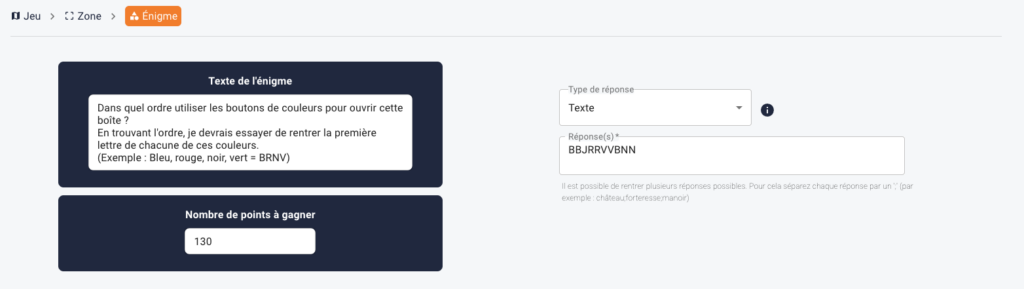
For Each Puzzle, You Need to Provide Two Main Elements:
1. The puzzle/question itself in the « Puzzle Text » field.
2. The answer to this puzzle/question.
For the answer, you have two options:
The first option allows the player to type their answer using the tablet’s keyboard. In this case, you need to specify the correct answer in the « Answer » field. However, keep in mind that players might make typos. You can address this by providing multiple acceptable answers, separated by a semicolon (;).
Multiple Choice Question (MCQ):
The second option is an MCQ.
In this case, you need to specify the correct answer in the « Multiple Choice Answer » field. Then, list all the answer options (including the correct one) in the « Options for the Answer » field. Players will then see a carousel of possible answers and must select the correct one.
You can also create an MCQ with multiple carousels, similar to a combination lock. To do this, separate the elements of your answer with a semicolon (;) in the « Multiple Choice Answer » field. You will then have a « Answer Options » section for each element. In the app, this will result in multiple carousels that players must combine to form the correct answer.
Example:
The answer to your puzzle is the following color sequence: Blue, White, Red.
Enter in the « Multiple Choice Answer » field: Blue;White;Red.
Then, in the « Options for the Answer » fields for each carousel, input:
Blue;White;Red;Green;Yellow
Players will then need to reconstruct the correct sequence using the 3 carousels, each containing the 5 colors above.
Finally, you can activate a popup window in the app at the end of the question.
Simply enter the desired text and configure the popup to display either always or only when players provide the correct answer.
How to add a hint to my questions?
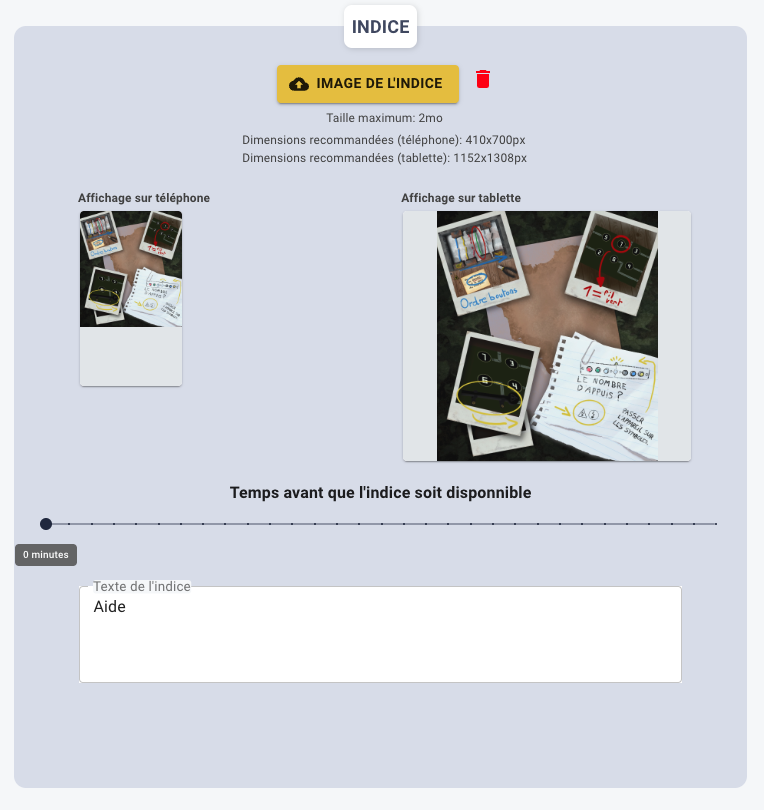
You can, when creating a question, choose to help your players.
In landing zone, a hint consists of text (which can be left blank if you don’t want to display anything) and an image.
Make sure to respect the maximum image size and the recommended dimensions for the image. The dimensions are indicated in the format width x height in pixels.
Finally, you can set a delay before the hint becomes available.
how to add a photo to my questions?
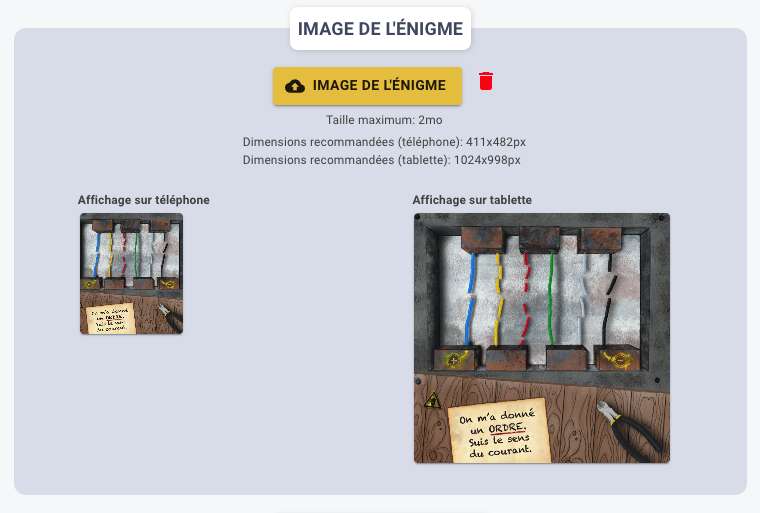
In landing zone, we have added the possibility for teams to see a photo associated with the current question. This can help them answer the question, display an archive image of the area they are in, etc.
To do this, simply add the desired image while respecting the maximum image size and the recommended dimensions for that image.